How to exchange a Datawegde profile with File Sync

Hello,

I have a datawedge profile which I distribute via FileSync and this script

__chmod 777 "/enterprise/device/settings/datawedge/autoimport/dwprofile_ChampWedge.db"

Now I found a typo in this profile and need to delete it, before I can send the correct one. How do I do that? Does deactivating the File Sync help already?

Thank you

3 years ago
Android
ANSWERS
IS
Ian Stuart Bronze Contributor
3 years ago

You should be able to use the "send script' option to delete the file.

MD
Matt Dermody Diamond Contributor
3 years ago

I recommend against using File Sync Rules for DataWedge configuration files due to the nature of how DataWedge auto-consumes these files. The File Sync rule will place the file in the directory and then DataWedge will auto-consume the file after the __chmod script is processed. This has the effect of deleting/removing the file from the directory. Upon the next sync interval / check in the File Sync Rule will be triggered again because it will detect that the file is not there and it will re-sync the file, which DataWedge will then read back in, redundantly. This constant syncing will continue to happen redundantly and can ultimately cause issues if it happens while the user is in the middle of scanning. I went through an extensive troubleshooting effort trying to determine why scanning behaviors were spontaneously changing and ultimately determined it to be a result of the File Sync rule being processed excessively and therefore constantly reconfiguring DataWedge, including while in use. I therefore highly recommend using Packages over File Sync rules in SOTI for DataWedge configuration files. 

Despite this recommendation, your specific issue would not be solved by a File Sync rule or Package as the configuration has already been read into DataWedge. Attempting to delete the existing DataWedge configuration file will have no effect on removing the Profile in DataWedge because the file is already gone and the configuration has already been read in, so the damage is done. You would potentially need to reset DataWedge to factory defaults in order to clear out the Profile that has already been read in with the wrong name. Alternatively if you export the working DW config as a full datawedge.db instead of the individual Profiles then that datawedge.db will have the effect of overwriting all prior configuration, including your bad Profile Name, which will effectively wipe it out. 

In summary I would recommend you export the datawedge.db file from a device and put that in a Package with the post-install chmod script.

OK
Oliver Kulbach
3 years ago

Hello Matt,

thank you very much for this extensive answer. I am a real newbie on SobiControl and just do what I learned in the beginnning and try to search for the missing parts. Seems the search in the community is currently not working, so I need to ask you again:

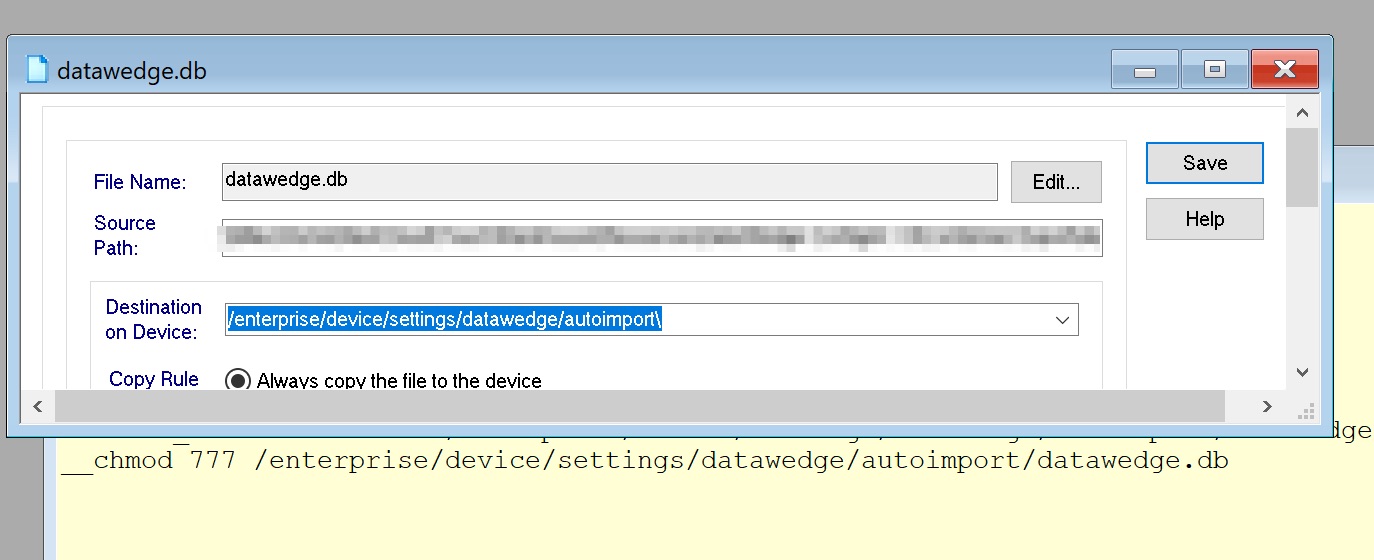
I created the package with this path as destination

\enterprise\device\settings\datawedge\autoimport\datawedge.db\

and this script as Post-Install

__chmod 777 "/enterprise/device/settings/datawedge/autoimport/datawedge.db"

It does not work, but as I am not quite understanding what I am doing here, it is difficult to find the reason.

Thanks

MD
Matt Dermody Diamond Contributor
3 years ago

This is the working structure that I use. If you have yours set the same way and it is not working then there may be something wrong with your datawedge.db. Was that an actual full export off of a sample device? 

S
SRobinson
10 months ago

Matt, are you still able to do this in Android 14?  I am having trouble writing the file to "/enterprise/device/settings/datawedge/autoimport" with the package.  I know Android 14 has a ton of rules regarding the file structure.

DT
Don Tienter
3 years ago

Oliver,

I would agree that the package/profile methodology is more reliable and better to manage than file sync to deploy a datwedge.db.

You stated:
"I created the package with this path as destination
    \enterprise\device\settings\datawedge\autoimport\datawedge.db\"
I suspect the resulting file location may be:          
    \enterprise\device\settings\datawedge\autoimport\datawedge.db\datawedge.db

Rather than put the file in the autoimport folder, another approach for importing datawedge settings that I find more reliable is with a StageNow xml to import the datawedge.db.

Transfer the datawedge.db to %sdcard%\datawedge.db via package.

Create and transfer a StageNow XML %sdcard%\Datawedge_Import.xml via the same package.

Datawedge_Import.xml
  <wap-provisioningdoc>
    <characteristic version="9.2" type="DataWedgeMgr">
      <parm name="ConfigurationFile" value="/sdcard/datawedge.db" />
    </characteristic>
  </wap-provisioningdoc>

After the two files are in place, the package post install script would be:
  mxconfig /sdcard/Datawedge_Import.xml

R
RSMOD@SOTI
3 years ago

Apologies for the wait, we are experiencing an unprecedented caseload at the moment.

I came across this thread on our DF which should be of help: SOTI Discussion Forum

Have you tried using a Package instead of a File Sync? Within the Package you can specify a post-install script like below which should apply the datawedge file:

__chmod 777 /enterprise/device/settings/datawedge/autoimport/datawedge.db

You will need to use MobiControl Package Studio to add a script to the Package - Using Scripts In Packages (soti.net)

Alternatively, you can try the StageNow profile like in the thread above which specifically enabled the autoimport feature for datawedge.

It sounds like there has been some sort of permission change in Android 10 Zebra firmware which is either causing the file to not autoimport or it doesn't have full read/write/execute permissions to change the setting.

Please let me know how you get on.