
Upgrading Android Datalogic Firmware using SOTI MobiControl
Summary
Related SOTI ONE Platform Products
Related Device OS
Situation
With this process, you can:
- Choose the features for a specific device.
- Prevent compatibility issues with the SOTI MobiControl Device Agent.
- Reduce network bandwidth usage with smaller file sizes.
Note: For release notes and firmware for specific devices, see the Datalogic products page.
Environment
This applies to the following environments:
- All versions of SOTI MobiControl, both cloud and on-premise environments
- All Datalogic Android OS devices.
Process Description
Important: This example uses a Datalogic Skorpio X5 device with Android OS 11. The device was upgraded incrementally from version 3.23 to 3.24.
1. Navigate to the device details page on the SOTI MobiControl web console and check the device's OEM version.
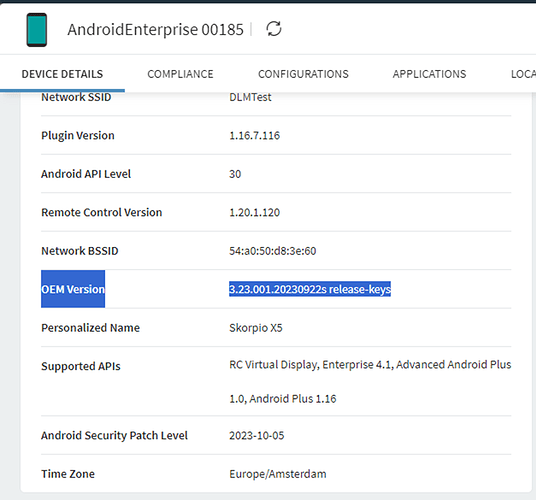
2. Download the appropriate firmware update file from Datalogic's product page.
Note: The update files with INCR in the name are incremental. Additionally, to download firmware versions, you need a Datalogic Shield contract. For more information, go to the Datalogic Shield website.
3. From the SOTI MobiControl hamburger menu, navigate to the Packages page.
4. Select Download Package Studio.
5. After the download finishes, open the MobiControl Package Studio application and select File > Create New Package Project.
6. Enter a name and a file path for your project.
Important: Ensure the OS version matches that of your device.
7. Select Post-Install to run an installation script after deploying the package.
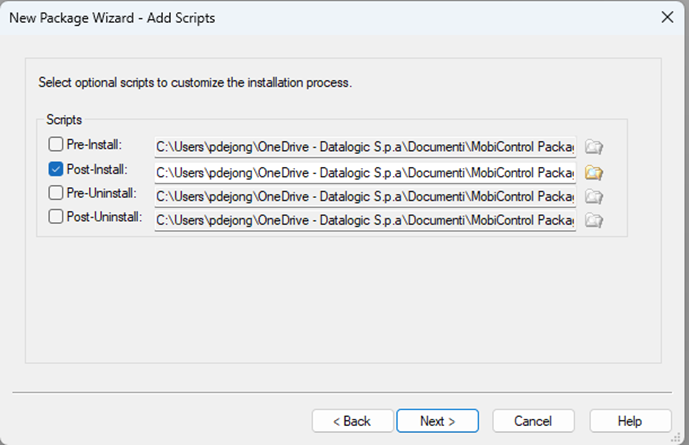
Note: To create device scripts, contact Datalogic Support.
8. To add the incremental upgrade file, select Add Files.
9. To download the file to your SD card, type %sdcard%\Downloads\ in the Destination on Device field.
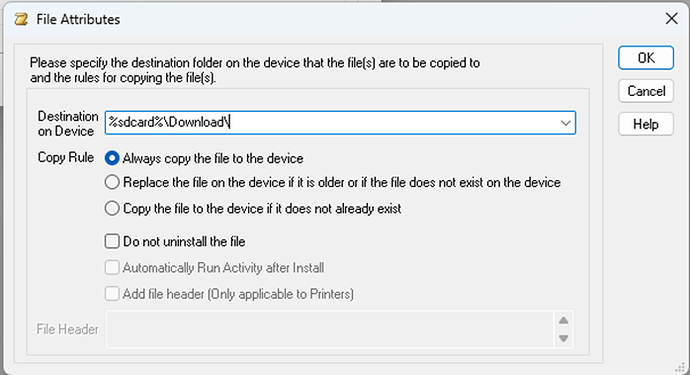
10. Add the following script in the Post-Install script file:

sendintent -s "intent:#Intent;component=com.datalogic.systemupdate/com.datalogic.systemupdate.SystemUpgradeService;i.action=2;S.path=/sdcard/Download/name_of_file_here.zip;i.reset=0;i.reboot=1;i.force_update=1;end"

//Replace name_of_file_here.zip with the name of your upgrade file.
//If you don’t want to reboot the terminal, change reboot=1 to reboot=0
11. Build the package.
12. Navigate to the Packages page on the SOTI MobiControl web console and select Add New Package.
13. From the SOTI MobiControl hamburger menu, navigate to the Profiles page.
14. Select Add New Profile.
15. Select Android > Work Managed as the profile type.
16. Add the uploaded package to the profile.
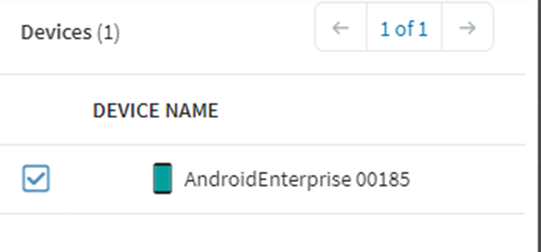
17. Select Save and Assign to assign the package to your Datalogic devices.
Was this helpful?
Thanks for your feedback